hero schedule
Lists the standing jobs Ekamyth Agent OS runs for you on a cadence, and lets you change a job's cadence or switch it on or off.
What hero schedule does
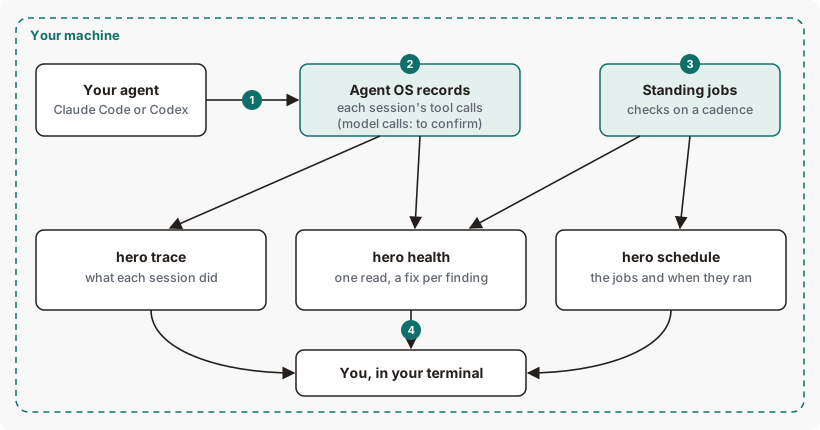
It answers one question: what is Agent OS checking for me in the background, and when did it last run? Agent OS runs standing jobs on your machine, such as the daily health read and the eval drift check. hero schedule shows each job's cadence, whether it's on, and when it last ran. It also manages the service that runs them.
- Use it when you want to see or tune what runs in the background, run due jobs now, or check that the schedule service is running.
- Use something else when you want the full result of a job. Run that job's own command, such as
hero healthorhero eval. - Alias: none.
- Reads or changes:
listand--service-statusread.set,on,off,run,daemon,--install-serviceand--uninstall-servicechange something, as each section says.
Synopsis for hero schedule
hero schedule [list]
hero schedule set <skill> <cadence>
hero schedule on <skill>
hero schedule off <skill>
hero schedule run
hero schedule daemon
hero schedule --install-service
hero schedule --uninstall-service
hero schedule --service-status
hero schedule help
Run with no subcommand, it behaves as list. <skill> is one of the standing jobs. hero schedule --help and hero help schedule print the same help as help.
Subcommands of hero schedule
| Subcommand | What it does | Reads or changes |
|---|---|---|
list | Each standing job with its live cadence, floor, on or off, streak and last run. This is the default. | Reads |
set | Sets a job's floor: the slowest it may run. It tunes a standing job and never creates one. | Changes the schedule |
on, off | Switches one standing job on or off. A job switched off stops without a restart. | Changes the schedule |
run | Runs every job that's due now, and prints each result. | Runs jobs |
daemon | Runs the schedule in the foreground until you stop it with Ctrl-C. The service runs this for you. | Runs jobs |
--install-service | Installs the schedule service, which starts at login and restarts after a crash. | Changes your machine's services |
--uninstall-service | Stops and removes the schedule service. | Changes your machine's services |
--service-status | Says whether the schedule service is installed and running. It always exits 0. | Reads |
help | This command's help. | Reads |
The standing jobs
| Job | Default floor | What it does |
|---|---|---|
eval | Daily | Runs hero eval as a drift check. |
health | Daily | Runs hero health as a standing report. |
efficiency | Weekly | Runs the cost report. |
codify | Daily | Sweeps your projects for new or changed rules and keeps them registered and checked as code. |
Arguments for hero schedule
Arguments for set
| Argument | Type | Required | Default | Allowed values | What it does |
|---|---|---|---|---|---|
<skill> | Job name | Yes | None | eval, health, efficiency, codify | The job to tune. |
<cadence> | Interval | Yes | None | hourly, daily, 3daily, weekly, <n>h (hours), <n>d (days) or <n> (seconds), where n is a whole number above zero. 0, 0h, -1d, 1.5h and fortnightly are refused. | The job's new floor. |
Arguments for on and off
| Argument | Type | Required | Default | Allowed values | What it does |
|---|---|---|---|---|---|
<skill> | Job name | Yes | None | As for set | The job to switch. |
The other subcommands take no arguments. A flag after list, set, on or off is refused, including --json. run ignores anything after it.
How hero schedule runs your jobs
The schedule service runs on your machine: a LaunchAgent on Mac and a systemd user service on Linux. Each time the service starts, it runs the jobs that are on right away, for a baseline; one job waits for its cadence. After that it checks every minute and runs each job when it's due, one after another.
Each job starts at a daily live cadence. When hero health reports a high finding for a job, that job runs daily again; after clean runs, it relaxes back toward its floor. It never runs less often than the floor you set. Results from the service go to the schedule log. For the whole picture, see How observability works.
Get started with hero schedule
Before you start: Agent OS is installed.
See the standing jobs.
hero scheduleYou should see the standing jobs, each with its cadence and last run. See Example output.
Check that the schedule service is running.
hero schedule --service-statusIf the service isn't installed, you see
not installed; see Example 4.Run the cost report daily instead of weekly.
This command will:
- Set the
efficiencyjob's floor to daily.
hero schedule set efficiency dailyYou should see
schedule: efficiency → daily.- Set the
To verify, run hero schedule and read the floor column. To undo step 3, set it back:
hero schedule set efficiency weeklyExample output of hero schedule
Output from version 0.1.36rc13. Trimmed where you see …
How to read hero schedule output
| Line | What it means | Where it comes from | What to do |
|---|---|---|---|
| 1. Heading | The standing jobs on this machine. | Your schedule. | Nothing. |
| 2. Columns | live is how often the job runs now. floor is the slowest it may run. status is on or off. streak counts clean runs toward relaxing the live cadence. last-run is whole hours since the job last ran, so anything under an hour reads 0h ago, or never. | Your schedule. | No action is required for the column headings; they label each job's schedule information. |
| 3. A job at its floor | The live cadence equals the floor, so streak shows —. | Your schedule. | Nothing. |
| 4. A tightened job | ↑ means the job runs more often than its floor, and streak shows its progress back toward the floor, such as 0/3. Agent OS watches daily until it sees three clean runs in a row, and any finding resets the count. | Your schedule. | See what the job found with its own command, such as hero efficiency. |
| 5. Legend | What live and floor mean. | The report. | Nothing. |
| 6. Commands | The commands that change the schedule. | The report. | See More examples. |
A last-run of ahead of clock (clock skew) means the recorded run is later than your machine's clock.
More hero schedule examples
Example 1. To switch a job off, and back on
This command will:
- Stop the
evaljob from running until you switch it back on.
hero schedule off eval
hero schedule on eval
Example output. The format is the command's.
schedule: eval disabled
schedule: eval enabled
Example 2. To set a floor in hours
hero schedule set eval 12hExample output. The format is the command's.
schedule: eval → every 43200sFloors other than hourly, daily and weekly print in seconds here. In the table, 3daily reads 3-day and 12h reads every 12h.
Example 3. To run due jobs now
This command will:
- Run every job that's due now, as the service would.
hero schedule runExample output. The format is the command's; the job results are examples.
ran 2 due job(s):
  ✓ efficiency  Efficiency · rolling 30d (Oct 06–Nov 05 UTC) · 0 calls  [daily]
  ✗ health      exit 1: Agent health · rolling 30d (Oct 06–Nov 05 UTC)  [daily]
Each line shows ✓ or ✗, the job, the first line of its output, and its live cadence. It exits 1 when any job fails, and 0 otherwise. On a fresh machine the health job can fail on its own finding, so run exits 1. With nothing due, it prints nothing due. and exits 0. If another run is already in progress for the same Agent OS home, it says so and starts nothing.
Example 4. To install the schedule service
This command will:
- Write the schedule service for your user: a LaunchAgent on Mac, a systemd user service on Linux.
- Load and start it, so it starts at login and restarts after a crash.
hero schedule --install-serviceOn a machine where Agent OS isn't active, it refuses, writes nothing, and exits 1:
hero schedule: install-service failed — schedule service install: not done — Ekamyth is not active on this machine yet (next step: `hero setup redeem <Install id>` from your invitation)Example 5. To remove the schedule service
This command will:
- Stop and remove the schedule service. Standing jobs, including the daily
codifyrules sweep, stop running.
hero schedule --uninstall-serviceRun it yourself at a terminal. When an agent runs it, Agent OS refuses with exit code 2 and reason unauthorized, saying a governed agent cannot switch off its own rules, and the remedy is to run it yourself in your own terminal. To undo a removal, run hero schedule --install-service.
Example 6. To run the schedule in the foreground
hero schedule daemonExample output. The format is the command's.
hero:schedule daemon — running all skills now, then ticking every 60s · Ctrl-C to stopCtrl-C or SIGTERM stops it, and it prints hero:schedule clean stop (SIGTERM) — active skill unwound; stores closed, or the same with SIGINT.
Exit codes and errors for hero schedule
| Code | Meaning | What to do |
|---|---|---|
0 | Done. --service-status always exits 0. | Nothing. |
1 | For run, at least one job failed. For a subcommand missing its arguments, the usage line is printed. For --install-service, the install failed or was refused. | Read the output. |
2 | Refused: unknown flag or subcommand, a job that doesn't exist, a cadence it can't read, or --uninstall-service run by an agent. | Check the synopsis and the errors below. |
4 | For --install-service with a moved HERO_HOME: the service file is written but not loaded. | Email support at the address in your welcome email, with the output you saw. |
| Error | Cause | Fix |
|---|---|---|
no scheduled job named '<skill>' — the jobs are: … | set, on or off named a job that doesn't exist. For on and off, the message ends with (run `hero schedule` to list them). | Use one of the jobs listed. |
cadence '<cadence>' is not one of: hourly, daily, 3daily, weekly, Nh (hours), Nd (days) or N (seconds) | The cadence isn't a whole interval above zero. | Use one of the forms listed. |
schedule has no verb '<word>' | An unknown subcommand. | Check the synopsis. |
{"refused": true, "reason": "unknown_flag", "governing_rule": "usage: hero schedule [list | set <skill> <cadence> | on|off <skill> | run | daemon | --install-service | --uninstall-service | --service-status]"} | hero schedule --json. hero schedule takes no --json. Exit code 2. | Run it without the flag. |
schedule has no flag '<flag>' | Another flag hero schedule doesn't take, such as -x. | Run it without the flag. |
usage: hero schedule [list | set <skill> <cadence> | on|off <skill> | run | daemon | --install-service | --uninstall-service | --service-status] | A subcommand was given without its arguments. | Add the arguments. |
hero schedule: install-service failed — schedule service install: not done — Ekamyth is not active on this machine yet … | Agent OS isn't active on this machine. | Run the hero setup redeem step the message names. |
hero schedule: install-service failed — hero schedule: refusing to touch the per-user service 'hero-schedule.service' from a foreign HOME. … | HOME isn't your account's real home directory. Removal is refused the same way. | Run it from your real home, or run hero schedule daemon in the foreground. |
written, NOT loaded — HERO_HOME is relocated from ~/.hero: <path> | HERO_HOME points somewhere other than ~/.hero. | Email support at the address in your welcome email, with the output you saw. |
Files and environment for hero schedule
| Name | Kind | Purpose |
|---|---|---|
~/.hero/schedule.log | File, written by the service | The service's output: a start line, each job run's one-line result, error lines and the stop line. Read it to see what a job found. |
~/Library/LaunchAgents/com.ekamyth.hero-schedule.plist | File, Mac | The schedule service, written by --install-service. |
~/.config/systemd/user/hero-schedule.service | File, Linux | The schedule service, written by --install-service. |
HOME | Environment variable | Must be your account's real home directory for --install-service and --uninstall-service. |
HERO_HOME | Environment variable | Root of Agent OS's files. Default ~/.hero. |
Limits of hero schedule
| Limit | Behaviour | Can you change it? | What to do |
|---|---|---|---|
| What a job found | list shows when a job ran, not what it found. The service writes each result, as its first line of output, only to the schedule log. run prints results in your terminal. | No | Read ~/.hero/schedule.log, or run the job's own command, such as hero health. |
| Alerts | A job's finding doesn't raise an alert. | No | Run hero health to see findings on demand. |
| Machine-readable output | No --json. hero schedule --json is refused with exit code 2. | No | Read the text table from hero schedule list; this listing has no --json output option. |
| Help | hero schedule --help prints a two-line header, then the usage line, with no subcommands listed. | No | Use this page, or the usage: line. |
| New jobs | set tunes the standing jobs and never creates one. | No | None. |
| Raising a floor | After you lift a short floor, the job keeps its shorter live cadence until it has clean runs. | No | None. It relaxes on its own. |
| Labels | Long labels such as every 12h push the row to the right. A floor under an hour reads every 0h. | No | Read the floor you set from the set confirmation. |
| Timing | The service checks for due jobs every minute, and runs jobs one after another, so a slow job delays the rest. A service that restarts often runs the baseline each time. | No | There is no exact wall-clock start-time setting; due jobs run on periodic checks and may wait for an active run. |
| Standing jobs and job records | Standing job runs aren't registered as jobs. | No | Read the schedule log. |
Commands related to hero schedule
Checked against Agent OS 0.1.36rc14 (build 599c5e120c18) on 17 Nov 2026.